Login to Website Builder Help

To login to your Website Builder, you will have to log in to your Client Area first through the Team Websol website.

Login to Website Builder

Once you are in your Client Area, you will need to click on the Build a Website option.

Login to Website Help 2

There you will click on a Website Template and click on to install

Login to Website Help 3

Then you will have the option to choose the website on which you would like to build

Login to Website Help 3

You will have to enter your email address and you may also have to enter your username and password (unless you saved your username and password when previously logging in).
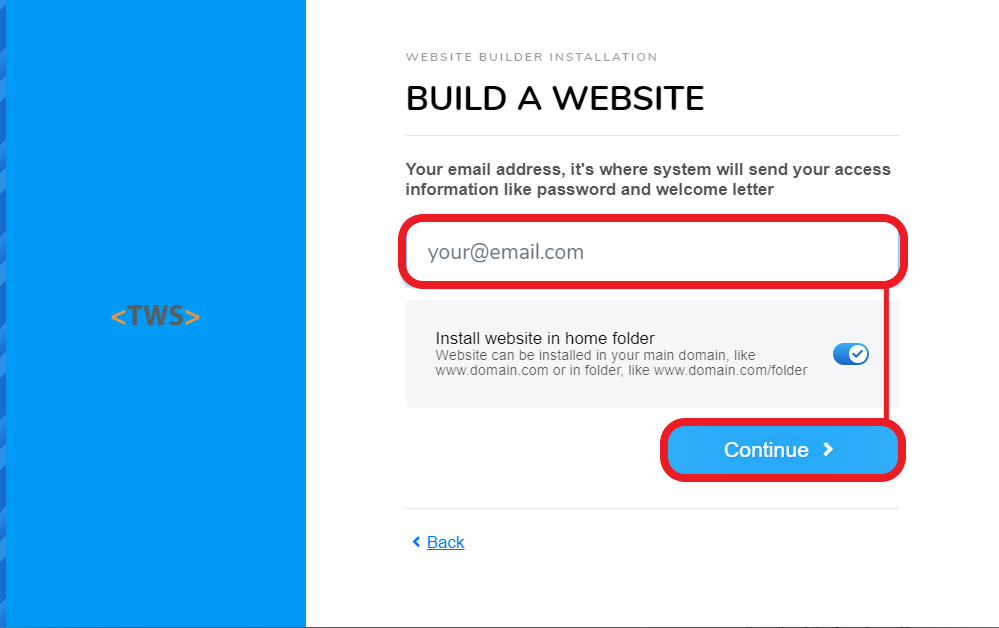
Login to Website Help 5

After your details are entered, you can then Login to Admin Area which will lead you to your Website. 

Login to Website Help 6

  • 0 Users Found This Useful
Was this answer helpful?

Related Articles

Block Settings - Resizing

Once you are logged into your Website Builder you can select a block and there you will see an...

Introduction Video

Once you are logged into your Website Builder you will see help icon on the left bottom side of...

Adding a Video

Once you are logged into your Website Builder you will see a content icon on the top left side of...

Change Website Favicon

Once you are logged into your Website Builder you will see the settings icon on the top left side...

Change Your Open Graph Image

Once you are logged into your Website Builder you will see the settings icon on the top left side...